Wednesday, November 12, 2025

Follow my new blog


Hey everyone,

It’s been a while since I’ve posted here, and a lot has changed since the early days of this blog. I’m still building software, still learning new things, and still writing about what I find useful — just in a new place.

I’ve moved my writing over to my company’s site at www.ytg.io/blog. That’s where you’ll find future posts on software development, cloud, AI, and the practical side of building technology that actually works.

If you’ve followed this blog for the technical deep dives or the occasional troubleshooting story, I think you’ll like what’s coming next. The new blog continues in the same spirit — straightforward, useful, and written by people who build things for a living.

Thanks for reading all these years. Head over to ytg.io/blog and check it out. I’ll see you there.

— Tim Yocum

Wednesday, June 14, 2017

Location of Microsoft.WindowsAzure.ServiceRuntime

Today while building a new Azure Worker I needed to add a reference to the Microsoft.WindowsAzure.ServiceRuntime, but couldn't find it right away.

I first went to the usual place where you find other Azure references: nuget. But, nope it wasn't there.

I did some poking around and eventually found it in the Add References dialog under Assemblies - Extensions. Hopefully this helps someone else as well.


Thursday, June 8, 2017

How to get iOS 11 and start playing with the new AR features

Apple announced the next version of iOS this past week at WWDC, and one of the features that I'm looking forward to is the Augmented Reality (AR) features that are built in. I can't wait, so I'm going to install the beta of iOS 11 this week on an 'old' iPhone 6S Plus that I have as a test driver device. Here are the steps to get the beta if, like me, you can't wait either.

I'm assuming that you already have a developer account with Apple and can follow these instructions. If you're not in the Apple developer program, you can sign up for the public beta () but it won't be available until later this month (June 2017).

Backup 

If you ever want to go back to iOS 10, you'll need to create an archive backup via iTunes or iCloud. I'm using a test device, so I won't be performing a backup.

Download 

On your phone or tablet, visit: developer.apple.com. Sign in with your Apple developer account. Go to the Downloads link:


Find the iOS 11 beta in the list of downloads.

Tap the Download button for the iOS 11 beta, to download the Configuration Profile on your device.

Consent 

You'll be taken to the beta profile. Touch the link to Install. Again, read the message from Apple that you are using beta software, then Touch Install.


Restart Your device will restart and you'll be on your way to getting the latest beta bits. Because I am interested in Hololens and AR in general, I'll be playing with the Augmented Reality (AR) features in the iOS 11 beta over the next few months. I will put up some blog posts about what I find and what I'm building.

My posts will be specific to iOS 11 AR features used in Xamarin iOS and Xamarin Forms.

Thursday, September 8, 2016

The dreaded 'error MSB6006: "tsc.exe" exited with code 1.' message when building

TypeScript is an amazing tool when working with JavaScript in MVC projects. If you haven't checked it out yet you really should. It makes working with JavaScript so much better and easier. Pluralsight has a terrific course on it here.

This blog post isn't about TypeScript and all its greatness. But rather, it is about quickly debugging build errors when building your web project in Visual Studio and you get the dreaded "tsc.exe exited with code 1".

Just like any build error, the built in tools are usually your best bet for debugging the issue. Whether it is a command in your project's pre-build or post-build events; or a tool like TypeScript failing as part of the build. Usually when calling an external tool from Visual Studio, I have always seen the error reported as "error code 1" or something similar. As an example, try to run the gacutil command from a post-build event when you do NOT run Visual Studio as an admin to see a quick example of this.

Anyway, back to the issue at hand. Today, I pulled down the latest code from MASTER and merged into my branch, build the solution and (insert sad horn sound here) I get the following lone build error:

'tsc.exe' exited with code 1.

To get better insight into the build error, I turn to the tools already at my disposal in Visual Studio. This is a build error, so what better tool to use than MSBUILD? First step, let's change the build logging level so that we can see exactly what is going on and what _exact_ command is being run with tsc.exe.

Go into Visual Studio, Tools - Options, Projects and Solutions - Build and Run, then change the MSBuild project build output verbosity to Diagnostic, click Ok.
Build and Run Settings

Rebuild the solution and then we head to the Output window. Use CTRL-F to bring up the Find window in the Build Output window, and enter tsc.exe. Make sure that you limit the search to the current window. Click the find icon.

This will take you to the first instance of the tsc command:
If you scroll down from here you'll see that this is setting up all of your options for the TypeScript command. The key parameters to note are:
  • FullPathsToFiles - this parameter contains all of the TypeScript (*.ts) files that will be used to generate your JavaScript files.


  • ToolsVersion- the version of TypeScript to use. I'm currently using version 1.8. The default location for installing TypeScript is:  C:\Program Files (x86)\Microsoft SDKs\TypeScript, and then the sub-folder will be which ever version(s) of TypeScript you have installed on your development environment. I have two sub-folders: 1.7 and 1.8,


Click on the find icon again, and you will be taken to the actual TypeScript command that Visual Studio is running to generate your JavaScript files. The command that is run for my particular build is:

 C:\Program Files (x86)\Microsoft SDKs\TypeScript\1.8\tsc.exe  --module AMD --sourcemap --target ES5 --noEmitOnError --locale en-US "[All files that were in my FullPathsToFiles]"

I removed the entire block of files from the command just to shorten things up a bit for illustration. I don't want my entire blogpost to be the 40 or so TypeScript files from my build command.  :)

Now that we know what command Visual Studio is trying to run for us, we can run it ourselves in a command window and identify the specific build error, and fix it. I run the Developer Command Prompt for VS 2015 as an Administrator. Copy and paste the full tsc.exe command from my Visual Studio 2015 Output Window, to the command prompt and run it.

NOTE: I had to add double quotes around the first part of the command: "C:\Program Files (x86)\Microsoft SDKs\TypeScript\1.8\tsc.exe" because of the spaces in the command path. YMMV.

I run the tsc.exe command and my build error becomes crystal clear:  in my latest merge from MASTER a file was deleted from the repo, but was still referenced in my web project:

"Cannot open file 'C:\{My Path}\{ProjectName}.Web\Scripts\typings\moment\moment-node.d.ts'.
error TS6053: File 'C:/{My Path}\{ProjectName}.Web/Scripts/typings/moment/moment-node.d.ts' not found."

I go to the folder path in my web project, and the .TS file is not there.


A quick phone call to my team and the TS file is added back into the MASTER repo, I merge that into my branch and the build compiles.

So, that's how to resolve the very specific tsc.exe build error. But, I hope this also helps you to debug any build error that is not very detailed (SomeTool exited with error code 1) when Visual Studio runs an "external" tool for you as part of the build process.

See ya around.

Tim

PS: Be sure to change your MSBuild logging level back to minimal. :)

Tuesday, May 17, 2016

SSMS 'Connect to Server' dialog is MIA on multiple monitors

I have been experiencing very frustrating behavior with Sql Server Management Studio (version 11.0.602) when working with multiple monitors.  When I open SSMS, the 'connect to server' dialog does not appear on any of my three monitors.  It seems to appear off the screen somewhere and I cannot get to it.  It's been quite a pain lately.

Granted, my development environment is not 'typical'.  I am running a Windows 10 VM in parallels on a MacBookPro with two external Apple monitors and using the monitor on the MBP as well.

For a while I would just disconnect my external monitors in order to get SSMS to show the 'connect to server' dialog, but I wanted to find a better way; and I wanted to share the solution with anyone else that is experiencing this same issue.

Here are the steps:

  1. Launch Sql Server Management Studio
  2. ALT-TAB to get to the SSMS Window
  3. Press the ESC key to cancel the 'connect to server' dialog
  4. Maximize the SSMS window.
  5. Click Connect, then select Database Engine
Now the 'connect to server' dialog will appear on your external monitors.  It doesn't show up on the SSMS window, but at least it shows up on one of my external monitors.  It doesn't consistently appear on the same external monitor, but hey, at least it appears now.

I hope that helps anyone else that has been experiencing this frustrating behavior.

Thursday, February 19, 2015

Xamarin.Forms - "InitializeComponent() was not found" error in a XAML page

I recently ran into an issue in Xamarin.Forms where previously working XAML (within a Content Page XAML) just stopped working and the following error was raised in Xamarin Studio:

InitializationComponent() was not found

I did some research and found that the myProject.projItems (*) file in the Xamarin.Forms project was changed and the XAML Content Pages nodes were no longer setup correctly.  Somehow Xamarin Studio changed the file and the XAML page nodes were now:

<Page Include="$(MSBuildThisFileDirectory)Views\Controls\MyContentPage.xaml">
      <SubType>Designer</SubType>
      <Generator>MSBuild:Compile</Generator>
</Page>

When I changed the nodes to match the following, the InitializeComponent() error went away.:

<EmbeddedResource Include="$(MSBuildThisFileDirectory)Views\Controls\MyContentPage.xaml">
      <SubType>Designer</SubType>
      <Generator>MSBuild:Compile</Generator>
 </EmbeddedResource>

I then went through the file and changed the other XAML files, and restarted Xamarin Studio and the error went away.

(*) NOTE - My Xamarin.Forms project wasn't named "myProject", it is set to that name to simplify the illustration. :) 

Monday, January 19, 2015

Windows Phone 8.1 Lumia 1520 Group Messaging issue

Recently I had an issue with a Lumia 1520, running Windows Phone 8.1, where my text messages sent to a group text were immediately sent back to me, in addition to the group.  My phone number would be added to the group text and I received each and every text that I sent, as well as those from the members of the group text.  It was more than annoying. 

After doing some research, I found out how to stop this from occurring; the steps are below.  I've already had to apply this "fix" at least three times over the past three months, so I know it works, but I'm just not sure why it happens in the first place.

Here are the steps to correct the issue:

  1. On your phone, go into Settings
  2. Swipe right to the "applications" tab, and select "messaging"
  3. Turn off Group Text by unselecting the option
  4. Restart your Lumia 1520 by holding the lock button - camera button - and volume down button at the same time until your phone vibrates and restarts.
  5. Once your phone restarts, go back into Settings and turn Group Text back on.
  6. I then delete any group text threads where my phone number appears as a recipient.

Again, not sure why this happens, but it started happening in October 2014 and has occurred about four times since the time of writing this post.  I am part of the Developer Preview program so it may have something to do with that, but hopefully it is fixed before the next official OS release / update.

I'm running Windows Phone - 8.10.14219.341, with Lumia Cyan.  Anyway, hope this helps someone else.

Friday, September 19, 2014

How To Link your Microsoft Account to Azure Powershell

Today I was trying to get the WadConfig.xsd file via the Azure Powershell window with this command:

  1. (Get-AzureServiceAvailableExtension -ExtensionName 'PaaSDiagnostics' 
  2. -ProviderNamespace 'Microsoft.Azure.Diagnostics').PublicConfigurationSchema | 
  3. Out-File -Encoding utf8 -FilePath 'WadConfig.xsd' 
But, I received this error (shown below):  No current subscription has been designated.  Use Select-AzureSubscription -Current <subscriptionname> to set the current subscription.
 
I tried to execute Select-AzureSubscription, but no dice there, it wouldn't recognize that I had any Azure subscriptions. 
 
[insert frustration and thirty minutes of searching for a solution]
 
I finally found a hint in Powershell.  I was trying many different commands that I found, and I stumbled across this command:
 
Add-AzureAccount
 
I had, wrongly, assumed that Powershell would "just know" who I am based on the Microsoft Account with which I had logged in.  But, nope.  It turns out that my Microsoft Account has both an "organizational" and "personal" aspect.  I logged into my machine with the "personal" aspect account, and my Azure subscriptions are linked to my "organization" aspect.  Grrr.
 
So, after running the Add-AzureAccount command, I was prompted for my Microsoft Account credentials, entered my "organization" credentials and then voila my Azure subscriptions showed up!!!
 
Now that my Microsoft Account was associated with Powershell, I was able to run:
Set-AzureSubscription -SubscriptionId '{My Subscription Id from the list above}'
 
And then when I ran the command to get the WadConfig.xsd, it worked!


Wednesday, July 16, 2014

Browser Link and VS 2013 slowness

I recently updated my version of Visual Studio 2013 to include Update 2, and I noticed that the IDE was extremely slow when debugging web applications.  It was also extremely slow just trying to run the website from Visual Studio.  It was taking around 30 seconds to one minute to go from one line in the source code to the next.  Visual Studio was freezing almost every time that I would debug anything.

It turns out that a new, very cool feature in Visual Studio was also killing my development performance.  This new feature is Browser Link.  I noticed that a SignalR script was running whenever VS seemed frozen while debugging.  It turns out that Browser Link uses a SignalR channel for the IDE to communicate to your browser window while debugging. 

Anyway, disabling this feature cured the sluggishness in Visual Studio 2013.  To disable Browser Link, uncheck "Enable Browser Link" via the menu item with the refresh icon in Visual Studio, shown below:

I hope this helps someone, because it was driving me nuts until I found the culprit.

Friday, October 25, 2013

Windows Phone GDDR3 - no data connection!!!

I recently upgraded my Nokia Lumia 1020 to the GDDR3 update that was made available to developers (Link to the GDDR3 install), and noticed that I no longer had a data connection when not on WiFi.  It took me a little while to notice since I work out of my house 99% of the time.  My first thought was that there was something incompatible with my carrier's network and the GDDR3 update, and was not happy.  But, that thought passed quickly and I set out looking through my phone's settings to see what new feature may have turned off my data connection. 

Eventually I found the problem and wanted to share this with everyone else, just in case you installed GDDR3 and ran into the same issue. 

  • On your phone, go into Settings
  • Access Point
    • On this screen I noticed that the access point on my phone was changed to AT&T 3G.  I changed this setting to AT&T - LTE - Lumia, and I was now able to use my data connection again.
I hope this helps anyone else that may have run into this same issue.

Windows 8.1 BSOD while connected to my Nokia Lumia 1020 on internet sharing

A few weeks ago I was still running the Windows 8.1 Preview and my laptop would BSOD (blue screen of death) within a few minutes after connecting to my Nokia Lumia 1020 in internet sharing mode.  I thought that maybe it was due to the Windows 8.1 Preview bits, so I just stopped tethering until I installed the release version of Windows 8.1. 

I upgraded to the full release version of Windows 8.1 last week and decided to see if the tethering was still an issue.  I connected to the Nokia Lumia 1020, and within a few minutes BAM!  BSOD.  So, it was definitely not an issue with the preview.  I started doing some research and found that the issue resided within the Network Connection properties of my tethered session with the Lumia. 

The short fix is that you need to enable FIPS (Federal Information Processing Standards) on the Wireless Properties of the connection to the Lumia.  The only problem is that the only way to set this property is to actually connect to your Lumia, which can be an issue when your machine will BSOD when you connect to you Lumia.  So, after a few crashes, the machine stayed connected just long enough to allow me to get to the settings. 

Here are the steps for enabling FIPS:
  • Enable Internet Sharing on your Lumia
    • Settings
    • System
    • Internet Sharing
    • Toggle the sharing option to ON.
    • Remember your Broadcast name and Password on this screen as you'll need it when connecting on your machine
  • Tethering to your Lumia on your Windows 8 / 8.1 machine:
    • Left click on the network icon in the system tray, and the list of available connections are shown on the right side of your screen.  Click on the network connection with your Nokia Lumia broadcast name, and then click connect.  You will need to enter the password for your phone's tethering (if you haven't done this previously)
    • At this point your machine is connected, and it may or may not BSOD immediately or it may BSOD within a few minutes.  The point is to not waste any time with the next set of instructions, it's now a race against time.  :)
  • Setting the FIPS property:
    • Left click on the network icon in the system tray and select:  Open Network and Sharing Center.  You will see your network connection on this screen.  Shown below is the network information for my internet connection with my Lumia:
    • You will now want to left click on the blue text (shown above as Wi-Fi (Nokia XXXXXXX), this opens the Wi-Fi Status screen shown below, click on Wireless Properties
    • On the Wireless Network Properties screen, click on the Security tab (shown below), and then click the Advanced Settings button.
    • Finally, this is the screen that allows you to enable FIPS on your network connection.  Hopefully you were able to get to this screen on the first try before your machine BSOD a few times.  :)
    • Simply check the Enable Federal Information Processing Standards (FIPS) compliance for the network, and you should never see the BSOD again when tethered to your Nokia Lumia.

Monday, August 19, 2013

How to factory reset a Nokia Lumia 920

I recently upgraded from my Nokia Lumia 920 to the amazing Nokia Lumia 1020 and wanted to reset the 920 to factory settings so I could give it to a friend.  I went through the recommended approach:  Settings - About - Reset to Factory Settings.  The phone rebooted and then got stuck in the "spinning gears" for a very long time.  I thought that I bricked the phone. 

I searched high and low and it seemed that everyone else that tried to reset their phone had this same issue.  Ugh.  Many people posted different key combinations, power cord plugged in / unplugged, shake it twice and do a break dancing spin on your head.  At some point one of the combinations worked and I was able to complete the factory reset.  So, to help out anyone else that is having this issue in the future, I figured I would approach this scientifically and provide the steps needed to successfully reset the 920 to factory settings.  So, I hope that this helps someone, and more importantly will help me again in the future when I want to reset another Lumia and need to remember the steps.  :)

Without further ado, here are the steps, please feel free to share with others:

1.  On your phone, go into Settings - About
2.  Select "reset your phone"
3.  Select "yes" on both Warning message.
4.  Your phone will restart and when it comes back on, the gears will be a spinning.
5.  Let your phone run until the battery completely drains.  This is the only way that I found to actually turn off the phone.
6.  Remove the SIM card.
7.  Plug the phone into the charger to power it back on, and also press and hold the Volume Down button immediately after plugging in the charger.
8. The phone will turn on and will go to the Nokia screen and then turn off.  All attempts to turn the phone on will result in the Nokia screen displayed, or the "charging" image, or the spinning gears. 
9.  Press and hold the Camera, Volume Down, and Power buttons until the phone vibrates.  When the phone vibrates, release the Power button only.  Keep pressing the Camera and Volume Down buttons for the entire reboot cycle until you see the spinning gears again.  This time, the spinning gears should only last a few minutes and then go into the normal reset, and you should have your phone working again.

I was able to factory reset two Lumia 920's with these steps.  A black 920 and a white 920.  It was not a very straight forward process, and took quite a while each time, but in the end, this is what worked.

I hope it helps.

Wednesday, June 5, 2013

Tough Mudder Philadelphia 2013

Although it's not technology related, it was a great team building time at Tough Mudder Philadelphia 2013.  Team Misery Loves Company - Part Deaux completed the course in less than record time, but we completed it.  :)


Friday, February 24, 2012

Sorting by date (not alphabetically by month name) in SSRS 2008 R2

We've all created reports in SSRS 2008 R2 that have date values in them.  And by default, the sorting is alphabetically by month name, like this:


This is obviously not what I wanted when I created my report to sort by date.  So, with a couple changes, and a new calculated field, we can fix this. 

Go into the Report Builder Design view.  Right click on your dataset name in the Report Data pane, and choose:  Add Calculated Field

In the Dataset Properties window, select the Fields section.  Then click the Add - Calculated Field button.  Type in a name for our date sort field.  I usually use:  MonthSort for the name.  If you are sorting on a different date part, then name the new field accordingly.

In the Expression field, type in the following:


This tells SSRS to format our Month field as:  yyyyMM.  So, April 15, 2012, would be formatted to:  201204.  So, now that we created the field, we need to have our report use it.  Click Ok to close the Expression window, and Dataset Properties window.

My particular date field happens to be a Row Group named:  Month.  So, I need to update the sort on this grouping to sort by date value, and not alphabetically on the month name.  So, I will right-click on the month grouping in the Row Groups:
Click on Group Properties.  Then click on the Sorting section, and change the Column to Sort by to our newly created MonthSort field.

Click Ok to close this window.  And run your report.  You will now see the month values sorted by month value, and not alphabetically.


Friday, December 16, 2011

To use Report Builder, you must install .NET Framework 3.5 on this computer!?!?!

I ran into a weird issue today in Sql Server Reporting Service 2008 R2 and wanted to share in case you run into this too.  Here is the back story:

 
I installed SSRS 2008 R2 on Windows Server 2008 R2 and was trying to create a report using Report Builder from the SSRS web interface.  When I clicked on the "Report Builder" menu item, I got this error:

 
To use Report Builder, you must install .NET Framework 3.5 on this computer.  To visit the Microsoft Download Center and install .NET Framework 3.5, click install.
 
Now, I know that the .NET Framework 3.5 is installed on Windows Server 2008 R2 by default; but who knows, maybe something was wrong with my installation.  So, before I clicked on Install, I figured I'd check to see that I actually have the framework feature enabled (who knows, maybe I really screwed something up).  

 
So, opening the Server Manager and going to the Add Features screen, I see the following:
Hmm, the framework is installed and enabled.  Alright, maybe something got screwed up somehow.  So, I click on the "Install" button.  It takes me to the download site and the .NET Framework 3.5 is downloaded.  I run the installer and get:
Ok, I've come full circle here.  This is awesome.

 
At this point, remembering that someone else probably has already experienced this same issue, I head out to the interwebs ;).  Lo and behold, someone has experienced this besides me, and they posted a solution to my immediate problem.  Wonderful!  So, for the time being, I make the necessary changes that they offer up, and voila!  Report Builder 3.0 works now when I click on the link. 
If you are in a pinch and want to know the temporary work around to fix the problem, here's the link that I reference above:  http://preview.tinyurl.com/78zqdau .  And just in case that link is no longer valid, here is what the author recommended:
  • In IE9, Go to the Tools menu, and click F12 Developer Tools.
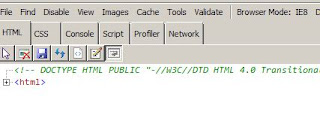
  • This will bring up this window at the bottom of the browser:

 
  • Click on Browser Mode:  IE9, and then select:  Internet Explorer 8
  • Now, when you click on the Report Builder link, it works.
But, being curious and not being satisfied with just "how" do I fix the problem, I want to know "why" was there a problem in the first place?  So, that's what this post is about:  understanding the problem in case I see something like this again I can fix it. 

Debugging Details:
Ok, so I enlisted some help from friends:  Fiddler, .NET Reflector, SSRS Logging, and Adam Tuliper.  [Yes, one of those is not a tool].

The first thing that I wanted to do was see if there was anything in the SSRS Log file that may provide some additional information.  So, I set the logging level to verbose on SSRS.  This is done by modifying the following file:  C:\Program Files\Microsoft SQL Server\MSRS10_50.YOUR_INSTANCE_NAME\Reporting Services\ReportServer\bin\ReportingServicesService.exe.config. 

Specifically, set the following values to a value of 4 (which is verbose):
  • DefaultTraceSwitch - set it to:  "4"
  • RSTrace\Components - set it to:  "all:4"
The following screenshot shows the section of the config file that contains these nodes:
After I set the loggin level to verbose, I then loaded the Folder.aspx page in both modes (IE8 and IE9).  I saved the logs from each run into separate files and compared the files with my favorite comparison tool.  This showed me the following:

In IE8 mode:

In IE9 mode:
So, in IE9 mode, there was additional logging information about a .NET assembly.  Sadly, there was no explicit error or anything that would tell me exactly why the difference in the log entries.  But, we had something to go on:  differences in the log entries can tell you much.  And what this tells us is that SSRS emitted additional logging about loading a .NET assembly under IE9 mode vs IE8 mode.

Enter Fiddler and Adam:
At this point, I turned to Fiddler and Adam.  I performed the same tests with Fiddler that I performed earlier with the SSRS logging.  I loaded up Fiddler and then loaded the page under both modes, and then compared the results of both.  Since the log sort of pointed us to a .NET assembly, Adam asked me to look at the User Agent in the requests.  So, here are the two requests:

IE8 Mode:

IE9 Mode:
Ah ha!!!  The USer Agent is the difference between the two modes.  So, our thoughts are that the Folders.aspx page in SSRS is looking at the header to detect whether or not the .NET Framework is installed.  And since in IE9 Mode it cannot find the ".NET CLR 3.5" entry it assumes that the framework is not installed. 

So, this brought us to this page from Microsoft regarding IE9 User Agent changes:
http://blogs.msdn.com/b/ie/archive/2010/03/23/introducing-ie9-s-user-agent-string.aspx

Here is some text from this link:
"An important change for site developers to know is that IE9 will send the short UA string by default."
And more importantly:
Well, that solves that mystery.  This is definitely something that I'll keep in mind in the future when using IE9.  I'm glad that I dug into this more than just accepting a simple work around that I found on the internet.  I hope this helps someone else that not only wants to know the work around, but also the "WHY?" and fully understand the solution. 

I look forward to your comments and thoughts.

Tim

Tuesday, December 6, 2011

Part 1 - Integrating SharePoint Foundation 2010 and SSRS 2008 R2

[NOTE:  Ok, finally I have some time to polish up this post and get it published on my blog.  Sorry for the delay but work and family life has kept me very busy the past few months].

Part 1 of this series will focus on integrating SharePoint Foundation 2010 with SQL Server Reporting Services 2008 R2.  Why SharePoint Foundation 2010 and not SharePoint Server 2010?  Wel, three reason really: 

  1. Cost - it is "FREE"!!!  You can't get much cheaper than that.  :)  Of course, there are other things that you must purchase, like hardware, OS licenses, an Internet Connector license, etc.  But, the cost of SharePoint Foundation Server itself is free.  Now, if you do a simple Bing search, you'll be able to find a few ISP's that will provide a SharePoint environment for you, for a monthly fee. 
  2. I love a challenge - Sure, I can probably have a better Business Intelligence experience right out of the box with SharePoint Server 2010 and all of the features that are offered with it, but I really like a challenge.
  3. How Far Can I go? - Lastly, I just want to see what sort of Business Intelligence story I can put together using SharePoint Foundation Server 2010 and a little bit of work.  Can I pull off a "dashboard" that could rival something in SharePoint Server 2010?

Where to get SharePoint Foundation?
So, getting started with SharePoint Foundation was pretty simple.  With an MSDN subscription and the right download URL's you'll be good to go in no time.  First, you'll need to download SharePoint Foundation 2010 from this link:  http://www.microsoft.com/download/en/details.aspx?displaylang=en&id=5970

My environment:
For this series, I am going to use the following hardware / software:
  • Development machine - Dell XPS17, 2.5gHz quad core, 16GB ram, 256GB SSD internal and 500GB internal 7200 HD, Windows 7 64 bit.  This laptop is sufficient to run up to four virtual machines.
  • VMWare Workstation - I am using VMWare Workstation 8.0, but you could really use any software that you are most comfortable with.  I've used others, and I prefer VMWare Workstation.
  • Virtual Server - like I mentioned above, I am going to create a single virtual machine with Windows Server 2008 R2 to contain both SharePoint Foundation 2010 and Sql Server 2008 R2 instances.  This may not reflect the same sort of environment that you are looking to setup, but it is a start and hopefully will get you going and then you can take it from there.  [NOTE:  I will be putting together a multiserver example of SPF 2010 / SSRS 2008 R2 integration in a later blog series.]
Server setup / installation:
I don't want to reinvent the wheel or try to paraphrase from any of the existing sources on the web that cover installing Win2k8 R2 and SPF and SSRS; especially when these resources are so well written.  So, shown below are the high level steps and corresponding links that cover each step.  This will get you setup with a good Win2k8 R2 VM with SPF / SSRS integration.  If any questions arise while you are following through these, please add them to the comments section and I'll do my best to provide answers / guidance.
  • Setting up a BASE VM Server image -
  • Cloning your machine -
    • Description - This is just a note to remind you to make a copy of the VM that you created in the previous step.  There are resources in the help section of VMWare Workstation that will help you through this, but here are the steps:
      • In VMWare Workstation right click on the VM that you just created and select:  Manage - Clone, then follow the wizard:
      • Clone From:  The current state in the virtual machine
      • Clone Type:  Create a full clone
      • Virtual Machine Name:  SharePoint Foundation - SSRS Dev [Feel free to use whatever name you want for this option.]
      • Virtual Machine location:  I store my VM's on an external USB 3.0 drive housing, but select the location where you store your VM's.
      • Click Close.  The wizard will now clone the BASE VM that we just created.  For the rest of this blog series, we'll use this cloned VM not the BASE VM.
  • Server Roles -
    • Open the Server Manager tool, and then click on Roles.
    • Click on Add Roles
    • Add in the Web Server role and the Application Server role.
  • Configuring the Server to be a domain controller -
  • Installing SPF and SSRS on the VM -
    • Description - The following Microsoft TechNet and MSDN articles explain how to install SharePoint Foundation (SPF) and Sql Server Reporting Services (SSRS) on the same server.  Follow these links below in this order:
  • Report Services Add-in installation -
  • Configuring Report Server integration in SPF -
  • Activating Report Server -
Ok, at this point,you should have a virtual server setup and running and ready to move on to the next part which gets into the meat of this blog series for creating a report dashboard with SPF 2010 and SSRS 2008 R2.


SSRS / SharePoint Foundation Integration

Ok, it's been a while, but I am ready to begin the blog series on integrating SSRS 2008 R2 and SharePoint Foundation Server 2010.  I'll try to get the entries out on a weekly basis, but in the meantime, if there is anything in particular that anyone would like to see an example of, or if there is anything that you have questions on, let me know and I'll put up some one off posts to answer any questions that you may have with your SSRS / SPS integration or project.

Tim

Tuesday, May 24, 2011

TechEd North America 2011

TechEd this year was great!  The sessions that I attended were all very worthwhile.  The ones that I missed, I'll catch on Channel 9.  I was able to volunteer for a few things this year as well.  Volunteering at the event is definitely worthwhile because you can help out, and it puts you in a position to network with many more people outside of your normal track at the conference.

One of my very good friends, Adam Tuliper, presented this year at TechEd.  He did a great job, and his presentation is one that every developer should view and learn from.  It covered a topic that most developers (and sadly, me too) overlook or put off until the "functionality" of the project is completed.  The presentation is on "hack proofing" your ASP.NET web forms and MVC websites.  You can watch the recording here:  http://channel9.msdn.com/Events/TechEd/NorthAmerica/2011/DEV333.  Like I said, you definitely will learn a lot about security. 

If you get the chance to see Adam present at a CodeCamp or User Group in your area, it is definitely worth the price of admission.  :)

Tim

Isolated Storage development in Windows Phone

Tonight I was racking my brain trying to get a json serialized file from the isolated storage of the emulator while I was debugging.  This tool is a god send and will help you to inspect the files that you create in the isolated storage of your development environment, it is named:  Windows Phone 7 Isolated Storage Explorer.  It can be found here:  http://wp7explorer.codeplex.com/.  There were a few quirky things, but it did exactly what I needed which was to let me inspect the files that I put into the isolated storage area.  I hope this post helps someone save some time.

For those that are interested...

I retrieved several DataServiceCollections from an odata feed, converted them to an ObservableCollection and then serialized it out to the Isolated Storage using the
DataContractJsonSerializer  and the IsolatedStorageFileStream.  This was all so that I could include this data with my application as a resource.  This was necessary since the odata service is not guaranteed to stay up much longer, and the data is not going to change.

But, with the help of the WP7Explorer, I was able to get the json serialized files and now I can include them with my application, and within the App.xaml I can put these files to the Isolated Storage the first time my application starts up.

Tim